
Ever wondered how your computer can run multiple operating systems at once without melting into a puddle of silicon? Or why your IT department keeps talking about “the cloud” like it’s some magical place in the sky? The answer lies in a fascinating technology called computer hardware virtualization.
If you’re new to this concept, don’t worry. By the end of this guide, you’ll understand what hardware virtualization is, why it matters, and how to check if your computer can handle it. No computer science degree required.
What Is Hardware Virtualization, Anyway?
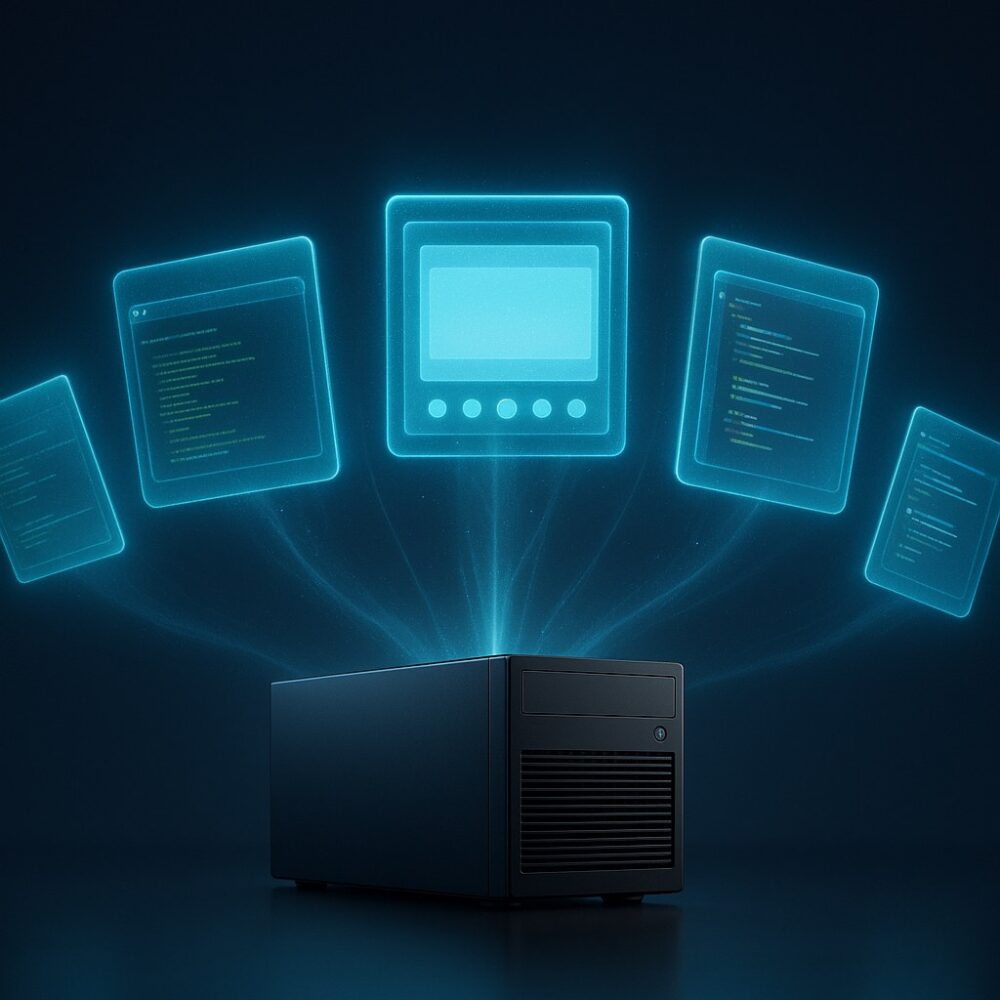
Let’s start with the basics. Hardware virtualization is a technology that allows one physical computer to act like multiple computers. Think of it like this: imagine your house could transform into multiple apartments, each with its own kitchen, bathroom, and living space. That’s essentially what virtualization does for your computer.
At its core, virtualization creates a layer of abstraction between your physical hardware (the actual chips, circuits, and drives inside your machine) and the operating systems running on it. This layer, called a hypervisor, tricks each operating system into thinking it has exclusive access to the hardware, when in reality, the resources are being shared.
The Hypervisor: The Traffic Cop of Your System
The hypervisor is the star of the show. It’s a thin layer of software (or sometimes firmware) that manages how physical resources get divided among virtual machines. There are two main types:
Type 1 (Bare-metal) hypervisors run directly on the hardware, without needing a host operating system. Examples include VMware ESXi, Microsoft Hyper-V Server, and Citrix XenServer. These are commonly used in data centers because they’re efficient and secure.
Type 2 (Hosted) hypervisors run on top of a regular operating system, like any other application. VirtualBox and VMware Workstation are popular examples. These are great for beginners and developers who want to experiment with different operating systems without buying separate hardware.
Why Does Hardware Virtualization Matter?
You might be thinking, “Okay, that sounds neat, but why should I care?” Fair question. Here’s why virtualization has become a cornerstone of modern computing:
Resource optimization: Before virtualization became widespread, servers typically used only 15-20% of their capacity. Virtualization pushed utilization rates to 70% or higher, according to industry reports from Gartner and IDC.
Cost savings: Fewer physical servers mean lower hardware costs, reduced electricity bills, and less cooling required. The U.S. Environmental Protection Agency has noted that server virtualization can reduce energy consumption by 10-40% in data centers.
Flexibility and speed: Need a new server for testing? Instead of waiting weeks for hardware to arrive, you can spin up a virtual machine in minutes.
Disaster recovery: Virtual machines are just files. You can back them up, copy them, and restore them quickly if something goes wrong.
How Does Hardware Virtualization Actually Work?
Let’s pull back the curtain and see what’s happening under the hood. Modern processors from Intel and AMD include special instructions that make virtualization possible and efficient.
Intel calls their technology VT-x (for x86 processors) and VT-d (for I/O virtualization). AMD’s version is called AMD-V. These hardware extensions allow the hypervisor to run virtual machines with minimal performance overhead.
The Key Components
When you enable hardware virtualization, several things happen:
CPU virtualization: The processor creates isolated environments called virtual machines (VMs). Each VM gets its own virtual CPU (vCPU) that maps to the physical cores. The hypervisor schedules these vCPUs on the physical cores, switching between them so fast that each VM thinks it’s running alone.
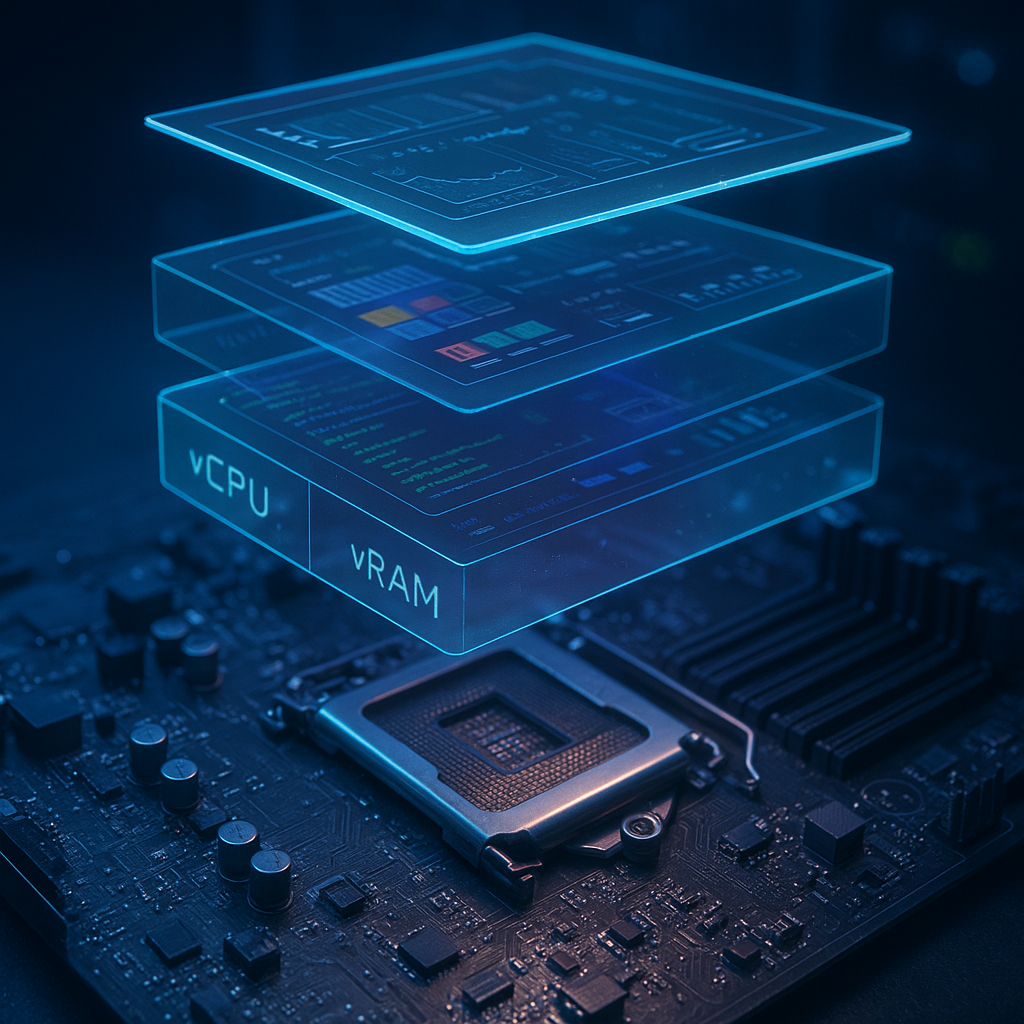
Memory virtualization: The hypervisor creates a virtual memory space for each VM. It translates the virtual addresses that the VM uses into actual physical memory addresses on your RAM sticks. This prevents one VM from snooping on another’s memory.
I/O virtualization: This handles how VMs access devices like network cards, storage drives, and USB ports. The hypervisor presents virtual versions of these devices to each VM, then manages the actual communication with the physical hardware. If your virtual machines feel sluggish when accessing the internet, the issue might not be virtualization at all—sometimes you just need to fix slow Wi-Fi at home to see better performance.
Real-World Examples You Already Use
You’re probably using virtualization right now without realizing it. Here are some everyday examples:
Cloud services: When you use Google Docs, Netflix, or Amazon Web Services, you’re interacting with virtualized infrastructure. Those companies use massive data centers filled with servers running thousands of virtual machines.
Android emulators: If you’ve ever run Android apps on your PC using BlueStacks or Android Studio, you’ve used virtualization to create a virtual phone inside your computer.
Windows Subsystem for Linux (WSL): Microsoft’s WSL2 uses a lightweight virtual machine to run Linux alongside Windows, allowing developers to use Linux tools without dual-booting.
Security sandboxes: Many antivirus programs use virtualization to run suspicious files in isolated environments, protecting your main system from potential threats.
Is Hardware Virtualization Safe?
This is one of the most common questions beginners ask, and it’s a valid concern. The short answer is: yes, hardware virtualization is generally safe, but with some caveats.
Modern hypervisors are designed with security in mind. They create strong isolation between virtual machines, so a problem in one VM shouldn’t affect others. However, no technology is 100% bulletproof.
Potential risks include:
- VM escape: In rare cases, attackers might find vulnerabilities that let malicious code break out of a VM and access the host system. This is why keeping your hypervisor updated is crucial.
- Resource exhaustion: A misconfigured VM could consume all available CPU or memory, slowing down other VMs or the host system.
- Side-channel attacks: Sophisticated attacks might exploit shared hardware resources (like CPU cache) to steal information from other VMs. This is more of a concern in shared cloud environments than on personal computers.
For home users experimenting with VirtualBox or VMware Player, the risks are minimal. Just download software from official sources and keep your virtualization tools updated.
How to Enable Hardware Virtualization on Your Computer
Ready to try virtualization yourself? First, you need to make sure it’s enabled in your computer’s BIOS or UEFI settings. Here’s how to check and enable it:
Checking If Virtualization Is Already Enabled
On Windows 10 or 11, press Ctrl + Shift + Esc to open Task Manager. Click the Performance tab, then select CPU. Look for “Virtualization” in the details. If it says “Enabled,” you’re good to go. If it says “Disabled,” you’ll need to enable it in BIOS/UEFI.
Enabling Virtualization in BIOS/UEFI
The exact steps vary by manufacturer, but here’s the general process:
- Restart your computer and press the appropriate key to enter BIOS/UEFI setup (usually F2, F10, F12, Del, or Esc during startup)
- Navigate to the Advanced, CPU Configuration, or Security section
- Look for options labeled Intel VT-x, AMD-V, SVM Mode, or simply Virtualization Technology
- Enable the setting
- Save changes and exit (usually F10)
Once enabled, you can install virtualization software like VirtualBox (free), VMware Workstation Player (free for personal use), or enable Hyper-V if you’re using Windows Pro or Enterprise.
Getting Started: Your First Virtual Machine
Want to dip your toes in the water? Here’s a simple project to get started:
Step 1: Download and install Oracle VirtualBox (it’s free and beginner-friendly).
Step 2: Download an ISO file for a Linux distribution like Ubuntu or Linux Mint.
Step 3: Create a new virtual machine in VirtualBox. Allocate at least 2GB of RAM and 20GB of disk space (virtual disks grow as needed, so this won’t immediately consume 20GB of your actual storage).
Step 4: Start the VM and follow the installation prompts, just like you would on a physical computer.
Congratulations! You’re now running a computer inside your computer. You can experiment, break things, and delete the VM when you’re done—your main system remains untouched.
Common Misconceptions About Virtualization
Let’s clear up some confusion beginners often have:
“Virtual machines are slow.” Not necessarily. With modern hardware virtualization support, VMs typically run at 90-95% of native speed. For many tasks, you won’t notice a difference.
“You need a super powerful computer.” While more RAM helps, you can run basic VMs on modest hardware. Even 8GB of RAM is enough to run a Linux VM alongside Windows.
“Virtualization is only for big companies.” Not true. Home users, students, and hobbyists benefit from virtualization for testing software, learning new operating systems, and creating isolated environments for risky tasks.
“VMs can replace antivirus software.” While VMs provide isolation, they’re not a substitute for security software. Malware can sometimes detect virtual environments and behave differently, or exploit vulnerabilities to escape.
Conclusion
Computer hardware virtualization might seem like magic at first, but it’s really just clever engineering that maximizes what your hardware can do. From powering the cloud services you use daily to letting you experiment with different operating systems safely, virtualization has become an essential technology in modern computing.
We’ve covered what hardware virtualization is, how hypervisors make it possible, and why it matters for both businesses and home users. You’ve learned how to check if your computer supports virtualization, how to enable it, and even how to create your first virtual machine.
The best way to truly understand virtualization is to try it yourself. Download VirtualBox, create a test VM, and explore. Break things. Fix them. That’s how you learn. And the beauty of virtualization is that when things go wrong, you can simply delete the VM and start fresh—no harm done to your actual computer.
As processors become more powerful and virtualization technology continues to evolve, the line between physical and virtual computing will blur even further. Understanding these fundamentals today prepares you for the increasingly virtualized world of tomorrow.